
Virtual Reality (VR) gaming offers an immersive experience, but it demands high performance from your gaming laptop. If your system isn’t optimized, you may face lag, stuttering, or even crashes. At Mesa Geeks, we specialize in computer repair and performance tuning, so we’ve put together this guide to help you optimize your gaming laptop for the best VR experience.
1. Check Your Laptop’s VR Readiness
Before diving into VR, ensure your laptop meets the minimum requirements:
Processor (CPU): Intel Core i5/i7 or AMD Ryzen 5/7 (or higher)
Graphics Card (GPU): NVIDIA GTX 1060 / RTX 2060 or AMD RX 580 (or better)
RAM: 16GB or more
Ports: USB 3.0+ and DisplayPort/HDMI 2.0 for VR headset connectivity
Use tools like SteamVR Performance Test or Oculus Compatibility Check to verify if your laptop is VR-ready.
2. Update Drivers and Software
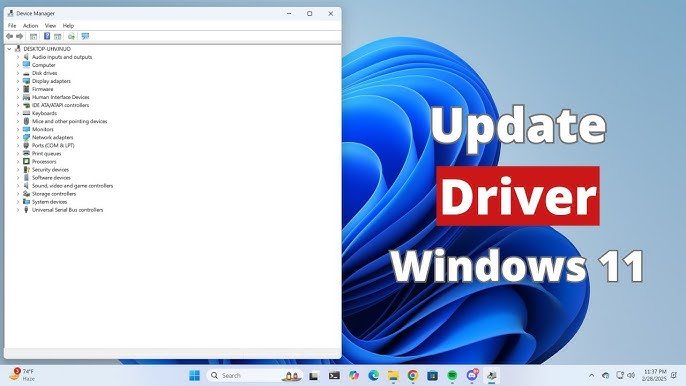
Outdated drivers can bottleneck performance. Ensure your system is up to date:
GPU Drivers: Download the latest from NVIDIA or AMD’s official websites.
Windows Updates: Install the latest OS patches.
VR Software: Keep SteamVR or Oculus software updated.
3. Optimize Power and Thermal Performance
VR gaming pushes your laptop hard, so managing heat and power is crucial:
Set Power Mode to High Performance:
Go to Control Panel > Power Options and select High Performance.
Improve Cooling:
Use a cooling pad to prevent thermal throttling.
Clean dust from fans and vents regularly.
Consider repasting thermal compounds (Mesa Geeks can help with this!).
4. Adjust In-Game and VR Settings
Tweaking settings can drastically improve performance:
Lower Graphical Settings: Start with medium settings and adjust based on performance.
Reduce Resolution Scaling: Some VR apps allow resolution scaling—lowering it can boost FPS.
Enable ASW/Reprojection (Oculus): Helps smooth out frame drops.
5. Close Background Applications
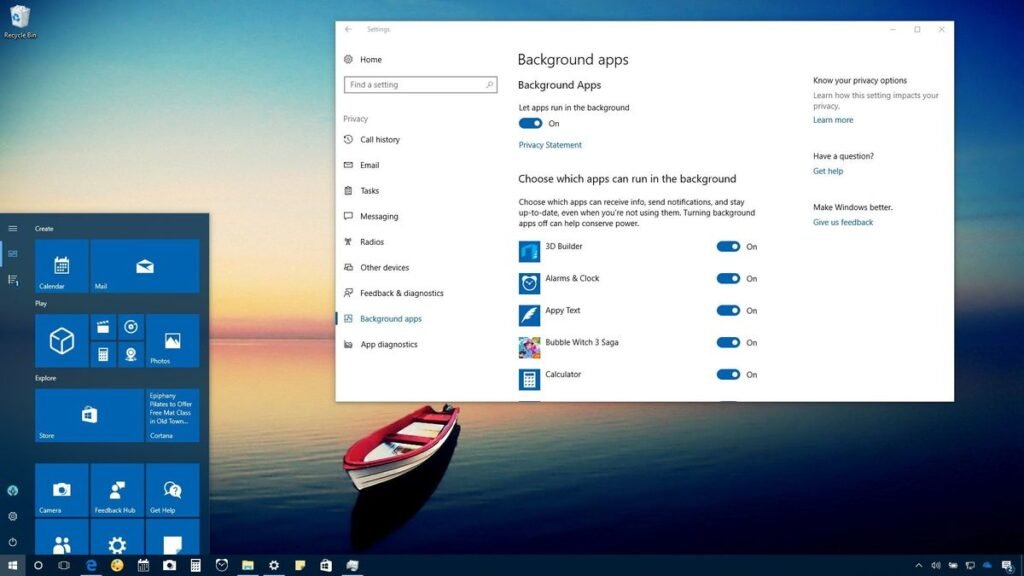
Unnecessary apps consume RAM and CPU:
Open Task Manager (Ctrl+Shift+Esc) and close background processes.
Disable startup programs via Settings > Apps > Startup.
6. Use an External GPU (If Possible)
If your laptop supports Thunderbolt 3/4, an eGPU with a high-end GPU can significantly enhance VR performance.
7. Monitor Performance and Troubleshoot
Use tools like MSI Afterburner or FPSVR to track performance. If you experience issues:
Check for overheating (thermal throttling).
Reinstall VR software if crashes persist.
Consider professional optimization—Mesa Geeks offers VR-ready laptop tuning services!
Final Thoughts
Optimizing your gaming laptop for VR ensures a smooth, immersive experience. If you need help with upgrades, thermal management, or software tweaks, Mesa Geeks is here to assist. Contact us today for expert computer repair and performance optimization!
By following these steps, you’ll be ready to enjoy VR gaming without performance hiccups. Happy gaming! 🚀
Need help? Visit Mesa Geeks for professional laptop optimization and repair services!