
Encountering the “Automatic Repair couldn’t repair your PC” error can be frustrating, especially if you’re unable to boot into Windows. This issue often occurs due to corrupted system files, faulty updates, disk errors, or incorrect shutdowns.
In this guide, we’ll explore why this error happens and provide step-by-step solutions to fix it.
Why Does This Error Occur?
The Automatic Repair tool (also called Startup Repair) is a Windows feature designed to fix boot issues. However, if it fails, you may see this error due to:
Corrupted system files
Damaged boot configuration
Faulty Windows updates
Hard drive errors
Incorrect BIOS/UEFI settings
Malware or virus infections
How to Fix "Automatic Repair Couldn’t Repair Your PC"
Method 1: Restart Your PC Manually
Sometimes, a simple restart can resolve temporary glitches.
Click “Advanced options” on the error screen.
Choose “Turn off your PC.”
Power it back on and check if Windows boots normally.
Method 2: Run Startup Repair Again
If the first attempt failed, try running it again:
On the error screen, click “Advanced options.”
Go to “Troubleshoot” > “Advanced options” > “Startup Repair.”
Let Windows attempt to fix the issue.
Method 3: Use Command Prompt to Fix Boot Issues
If Startup Repair fails, manually repair the boot files using Command Prompt:
Boot into Advanced Startup Options (Shift + Restart or via recovery media).
Go to “Troubleshoot” > “Advanced options” > “Command Prompt.”
Run the following commands one by one:
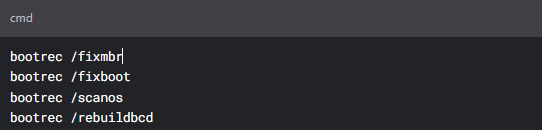
Restart your PC and check if the issue is resolved.
Method 4: Check Disk for Errors
A corrupted hard drive can cause boot failures. Run CHKDSK:
Open Command Prompt from Advanced Startup.
Type:

(Replace
C:with your Windows drive letter if needed.)Press Y to schedule the scan on the next restart.
Reboot and let the scan complete.
Method 5: Rebuild BCD (Boot Configuration Data)
If the BCD is corrupted, rebuild it:
Open Command Prompt in recovery mode.
Run:

(Note the drive letter where Windows is installed, e.g.,
C:orD:.)Run these commands (replace
C:with your drive letter if needed):

Method 5: Rebuild BCD (Boot Configuration Data)
If Windows created a restore point, revert to it:
Go to “Advanced options” > “Troubleshoot” > “System Restore.”
Select a restore point before the issue occurred.
Follow the prompts to complete the restoration.
(Note the drive letter where Windows is installed, e.g.,
C:orD:.)Run these commands (replace
C:with your drive letter if needed):
Method 5: Rebuild BCD (Boot Configuration Data)
If Windows created a restore point, revert to it:
Go to “Advanced options” > “Troubleshoot” > “System Restore.”
Select a restore point before the issue occurred.
Follow the prompts to complete the restoration.
Method 7: Reset This PC (Keep or Remove Files)
If nothing works, reset Windows while keeping your files:
Go to “Advanced options” > “Troubleshoot” > “Reset this PC.”
Choose “Keep my files” (or “Remove everything” for a clean install).
Follow the on-screen instructions.
Method 7: Reset This PC (Keep or Remove Files)
If nothing works, reset Windows while keeping your files:
Go to “Advanced options” > “Troubleshoot” > “Reset this PC.”
Choose “Keep my files” (or “Remove everything” for a clean install).
Follow the on-screen instructions.
Method 8: Reinstall Windows Using a Bootable USB
If all else fails, perform a clean install:
Create a Windows bootable USB using another PC.
Boot from the USB and select “Install Now.”
Choose “Custom install” and format the system drive before reinstalling.
Method 8: Reinstall Windows Using a Bootable USB
If all else fails, perform a clean install:
Create a Windows bootable USB using another PC.
Boot from the USB and select “Install Now.”
Choose “Custom install” and format the system drive before reinstalling.
Local & Trusted PC Repair in Mesa
Call Us – Speak directly with a technician at (480) 434-4222.
WhatsApp Support – Message us at (352) 234-6972 for quick help.
Email Us – Send details to support@mesageeks.com.
Visit Our Website – Schedule a repair online at https://mesageeks.com.
Conclusion
The “Automatic Repair couldn’t repair your PC” error can often be fixed using Startup Repair, Command Prompt tools (Bootrec, CHKDSK, BCD rebuild), or System Restore. If the problem persists, a Windows reset or clean install may be necessary.
By following these steps, you should be able to recover your PC and get back to normal operation. Let us know in the comments if you need further assistance!
Emergency PC Repair? Call Now!
Don’t let a broken computer disrupt your day. Contact MesaGeeks today for fast, reliable repairs:
📞 Call: (480) 434-4222
📱 WhatsApp: (352) 234-6972
✉ Email: support@mesageeks.com
🌐 Book Online: https://mesageeks.com
🔧 Pro Tip: Regular maintenance (cleaning, updates, backups) can prevent major issues. Need a tune-up? Call us!